
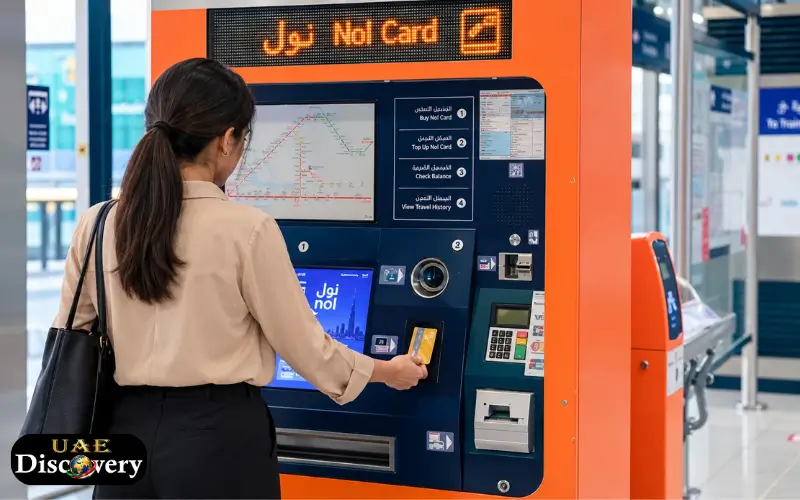
The Dubai Nol cards are valid for Dubai’s public transport services such as the Dubai Metro, buses, Dubai Tram, and other services that are eligible for use by the RTA public transport network. Passengers can review their available balance before they depart to ensure they don’t get stuck at the station gate and can make plans without any delays.
A Nol Card Balance Check can be done easily via the official Roads and Transport Authority (RTA) website or the Nol Pay mobile app. The application also offers the option of topping up a card, as well as managing other cards. Newly inserted amounts of credit may require activation before they can be used for travel, depending on the means of recharging the card.
Passengers can also view their card details, get a summary of related transactions, and see if there is a pending top-up. The official RTA services are safer than unofficial websites that can have outdated information and ask for unnecessary personal information.
Nol Card Balance Check: Quick Information
| Detail | Information |
| Transport authority | Dubai Roads and Transport Authority (RTA) |
| Official mobile app | nol Pay |
| Online option | RTA website balance service |
| Information required | Nol card details or tag ID, depending on the method |
| Top-up options | Official RTA channels and authorised services |
| Main uses | Metro, buses, tram, and other eligible services |
| Official website | rta.ae |
| Official app information | nol Pay |
Depending on your card type, device, and service you pick, you can choose one of the options available to you. Please refer to the official RTA website or app for the latest information.
What Is a Nol Card?
Nol cards are contactless payment cards that are used for transport and certain services in Dubai. When possible, instead of buying a single ticket for each eligible trip, passengers can top up a card with money and tap it at the designated readers. The card can be used by residents, employees, students or visitors of the Dubai area who cross-check the city on a frequent basis. It can also be used for other eligible payments, depending on the type of card and service, that are supported by the Nol system.
There are various Nol cards such as Silver, Gold and Blue cards. The Red Ticket is another transport ticket, which is different in use and features from reusable Nol cards. The condition applies to the individual card, and passengers should check this beforehand. All card types do not provide the same registration, concession, top-up, or management options.
How to Check Your Nol Card Balance Online
To check Nol card information, the official website of the RTA offers an online service. This will be helpful to travelers not wanting to install any application.
Here are the steps to check the available balance:
- Go to the official RTA website.Visit the official RTA website.
- On the home page, look for the Nol Card Balance option, or utilize the Nol card service.
- If asked, enter the requested card data (e.g., Nol tag ID).
- Fill out the information and follow the instructions on the website.
- Check the official service’s balance report.
The page layout may be different when RTA updates its website. If the balance option is not shown in the immediate view, you will find the same under Nol card or public transport services section.
Please fill out the card information carefully. The Nol tag ID will be printed on the physical card, use the id that is requested by the official service, not a random number.
If a successful Nol Card Balance Check is done, it can help you determine if you should prep the card before you leave the house. If you’ve recently made a top-up, however, you should make sure that the transaction has gone through and there’s no more activation necessary.
How to Check Nol Card Balance Using the nol Pay App
One of the most convenient apps to use for managing a Nol card is the official Nol Pay app. RTA’s app features include balance checking and top-up. The app also provides other services such as travel pass management and family card management.
Steps to Check Your Balance in Nol Pay
- Download/Install the official NolPay app from a supported App Store.app store.
- Use the sign-in/account instructions provided in the app.
- Click on the appropriate physical or virtual Nol card.
- Please scan the card or enter details, as directed.
- When the NFC service asks you to scan a card, hold the card against the NFC reader on your phone.
- Wait until the application reads the card information.
- Check the balance and other information that is shown on the card.
The actual procedure varies according to the device and card management option. If it’s needed, enable the NFC feature on your phone when scanning a physical card.
Move the card back over the NFC area and take away any thick casing that could block the reading if the app is unable to read your card. Ensure you’re on a compatible device and the latest version of the app.
The Nol Card Balance Check process via the application is of great value to those who wish to check their balance and recharge without going to a metro station. Ensure that the application is the official RTA Nol Pay application before entering information for payment.
How to Find Your Nol Card Number or Tag ID
The Nol tag ID is a card identifier for some RTA services. It is not the same as your available balance, and it should not be confused with the amount of money on the card.
If it’s a physical card, search for the number on the back. The official RTA instructions state that the Nol tag ID is a 10-digit number. You can scan the card instead of typing the card number into the service, depending on the service.
In the case of a virtual card, open the card information section of the official app, and follow the instructions available to find the required information.
Please provide the identifier:
- Make sure that all numbers are typed correctly.
- Do not enter spaces unless specified by the form.
- Be sure to have selected the right card.
- Never give your card information on an unfamiliar website or to anyone who is providing an unofficial balance-check service.
When you are checking your balance or requesting a top-up, you can avoid any mistakes if the card details are correct.
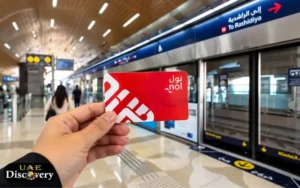
Can You Check Nol Card Balance Without the App?
Yes. You do not have to rely exclusively on the Nol Pay app. RTA provides an online balance option, and passengers can also use available official card information services. If you do not want to install an application, open the RTA website and look for the Nol Card Balance service. Follow the instructions provided there.
You can also visit a metro station and use the available ticket office or vending machine facilities to check relevant card information, where supported. Staff at an RTA service point may help you identify the appropriate option.
The best method depends on your situation:
| Method | Best for |
| RTA website | Checking balance through a browser |
| Nol Pay app | Checking and managing a card on a compatible phone |
| Metro station machines or service points | Getting assistance in person |
| Official card information service | Reviewing card details using the requested identifier |
Do not assume that every machine provides the same features. Follow the instructions on the specific machine or ask station staff if you cannot find the balance option.
How to Check Nol Card Balance Before Travelling
Checking your available balance before you go out during the busiest travel time is helpful. If the balance is inadequate, you might need to top it up before boarding the transport system.
A trick is to use a simple routine for this:
- Check your balance before you go out of the house.
- Calculate the fare of your intended trip based on information from the official RTA.
- Top up your card if needed.
- Check if a recent top-up has been sent.
- Be ready with your card if you’re approaching a station gate.
The amount of money you need to pay depends on your travel situation and the RTA rules. Please note that the minimum fare for the activation of a pending top-up is not the minimum fare for all trips.
According to RTA’s published information, a minimum balance might be needed for pending credit in metro gates. The amount applies to the respective type of card and the method of activation. If you have a pending top-up on your card, please refer to the latest RTA instructions.
How to Top Up a Nol Card Online
If you don’t have enough credit to take off on your next trip, you can add more credit to your card via the supported official channels.
Top Up Through the nol Pay App
If it’s a physical card, the app might enable you to use NFC to scan the card or choose a card associated with your account.
- Tap Open nol Pay and then click on top-up.
- Choose the appropriate card or scan it (if necessary).
- Select the amount to be paid for the top-up.
- Make full payment via a recognized payment method.
- If asked, scan the physical card again following any instructions.
- Verify the balance to ensure that the top-up is available.
RTA says that once the NFC-supported process is successfully completed, top-ups through Nol Pay can be activated immediately. For virtual cards, no physical card is involved with the top-up process.
Top Up Through the RTA Website
The RTA website also has a top-up service for Nol. It’s a general process that is completed by signing in (when necessary), choosing the top-up service, adding or choosing the card tag ID, picking an amount, and paying.
But travel may not be conveniently available for a website top-up. According to the instructions given by RTA, some top-ups done online take about 45 minutes to four hours before they are activated using a method approved by RTA.
Once you have paid, read the confirmation message and follow the instructions to activate. Don’t presume that the payment is done and the money is available for use.
How Much Can You Top Up?
Depending on the service and card type, RTA sets various limits and conditions. The latest service information indicates that it has several channels with a minimum top-up of AED 5, with other channels potentially having different minimums. The maximum card balance and the top-up limits also vary in line with the rules.
Before paying, look at the quantity and limits provided by the official service. If you require a particular quantity, make sure that the channel you are choosing supports that quantity.
What to Do If Your Nol Card Top-Up Is Not Showing
There are times when a passenger makes a payment but does not get a view of the credit on the card at that moment. This does not always mean that the transaction has failed.
This could be because the top up is yet to be enabled. The steps will vary according to how the money was added.
If You Used the RTA Website
Please look in the confirmation message or email to get instructions on how to activate. You may have to wait for the top-up to be processed and then get the amount activated via the approved channel, depending on the top-up environment.
If You Used nol Pay
See if the app requested that you scan the physical card once again following payment. If two NFC scans are required, conduct the second scan before viewing the new balance.
If the Balance Still Does Not Update
Try the following:
- Verify payment is successful.
- Look at the card number or tag ID for the transaction.
- Check the app or email for the activation instructions.
- Activate the official process by the RTA.
- If the problem persists, reach out to RTA via its official channels and include the transaction reference (TR) if asked for.
Hold on to the payment confirmation until the balance is changed. If the payment hasn’t been made, DO NOT pay twice unless the official service has confirmed that a second payment is necessary.
Understanding Nol Card Types and Balance Checking
The various types of Nol cards are designed to meet the needs of various passengers. Although the function of a check is the same, the management options available may differ.
Nol Silver Card
The Silver card is generally used by residents and visitors for their daily commute. It can be used for eligible journeys by those who wish to have a reusable card.
Nol Gold Card
The Gold card is valid for travel in the Gold Class cabin on eligible Metro and Tram services (as per the conditions of the RTA). Fares and travel conditions may vary from the regular travel fare.
Nol Blue Card
The Blue Card is a card that is attached to a person. It provides the following features: registered-card and it can include eligible concessions for certain categories, depending on RTA requirements.
Nol Red Ticket
There is an additional ticket category that is distinct from the Red Ticket: the Red Ticket usage. It is NOT the same as the reusable Silver, Gold or Blue cards – passengers must refer to the rules on travel and recharging of this card.
In case you don’t know which card you have, utilize the official information service of the card or Nol Pay to see the information available.
Common Reasons Your Nol Balance May Seem Incorrect
If the total is not the one you are expecting, check the transactions recently made and try to think about the following:
A fare has been deducted: This means that your fare may have changed due to a completed trip or another valid transaction.
A top-up is pending: The payment might have been made, but the money may not have been activated.
The wrong card was checked: If you have multiple cards, be sure to choose the right one.
Transaction is still being processed: There are some online channels that need extra processing.
The card is technically faulty: If it cannot be read, or the information on the card seems inconsistent, contact the RTA by official means.
If you have a transaction history, look at the more recent transactions and compare them to the journey and recharge history. Hold onto receipts for any discrepancies until they are resolved.
How to Keep Your Nol Card Safe
In order to avoid any issues with the card and balance, there are certain simple habits that should be followed.
- Use official RTA services for balance checks and top-ups.
- Keep your card away from damage, bending, and excessive heat.
- Save the payment confirmations until they have been added correctly.
- Please verify you are paying for the right card.
- Avoid providing your account details or verification codes to people you don’t know.
- Don’t go to sites that ask for personal information to provide an unofficial balance check.
- If the card is lost, damaged, or associated with an account, refer to the official RTA procedure for the card type.
Registered and personal cards might provide management options in a somewhat different manner to anonymous cards. Check the conditions associated with your card before applying to replace or get a refund.
Read Also: Fazaa Card in UAE
Conclusions:
By checking out the available credit prior to travel, the daily commuter in Dubai can better manage their travel. The RTA site is a browser-based solution, Nol nol Pay provides the ability to check balances and make top-ups on compatible devices.
To ensure a successful Nol Card Balance Check, you should get an official RTA service, enter the proper card information, and follow any instructions to activate a recent top-up. In case the amount is not credited as expected, do not use unofficial sites, but keep your payment receipt and contact RTA.
Disclaimer: Information on uaediscovery.com is for general use only. The features and activation time of the cards, as well as their rules and top-up fees, could be changed by RTA. Confirm key information from official RTA channels prior to payment or travel.
Read Also: FAB Balance Check
Frequently Asked Questions
How can I check my Nol card balance online?
Visit the official RTA website and find the Nol Card Balance option. Simply input your requested card information and follow the prompts to view your card’s balance.
Can I check my Nol balance using my mobile phone?
Yes. There are two ways: Using the official nol Pay app or opening the RTA website in your mobile browser. Some features of the app are compatible only with some phones.
What is the official app for Nol card balance checking?
The official app is called ‘Nol Pay’. One of the features that RTA offers is balance checking and top-ups.
Where can I find my Nol tag ID?
On a physical card, look for the number on the back. The tag ID is identified by RTA as a 10-digit number. You can also scan the card on an app that is supported.
Can I check my balance without downloading an app?
Yes. Use the official RTA website’s Nol Card Balance option. The metro stations have some card information services that can assist.
Why is my Nol top-up not showing?
Certain top-ups will need to be processed and activated. Verify payment, and perform the action on the channel used.
How long does an online Nol card top-up take?
Some site and tag ID top-ups take around 45 minutes (up to four hours) before activation, according to RTA. A top-up via the supported app process might be instantaneous after the proper scan.
What is the minimum balance needed to activate a pending top-up?
RTA has a variety of minimum balance needs based on the card and activation technique. Read the official instructions that are current, not assuming any amount is used for all cards.
Can I check the balance of a Nol Silver or Gold card?
Yes. Make use of the official RTA site or nol Pay and adhere to the directions on the card. Some features may be exclusive to certain cards and/or devices.
What should I do if my balance is incorrect?
Recall your recent travels and check the receipts for top-ups, and if no top-up is pending, make sure to reach out to RTA via their official support channels if the problem persists.